
Neo 2: Filming Venues in Windy Conditions Guide
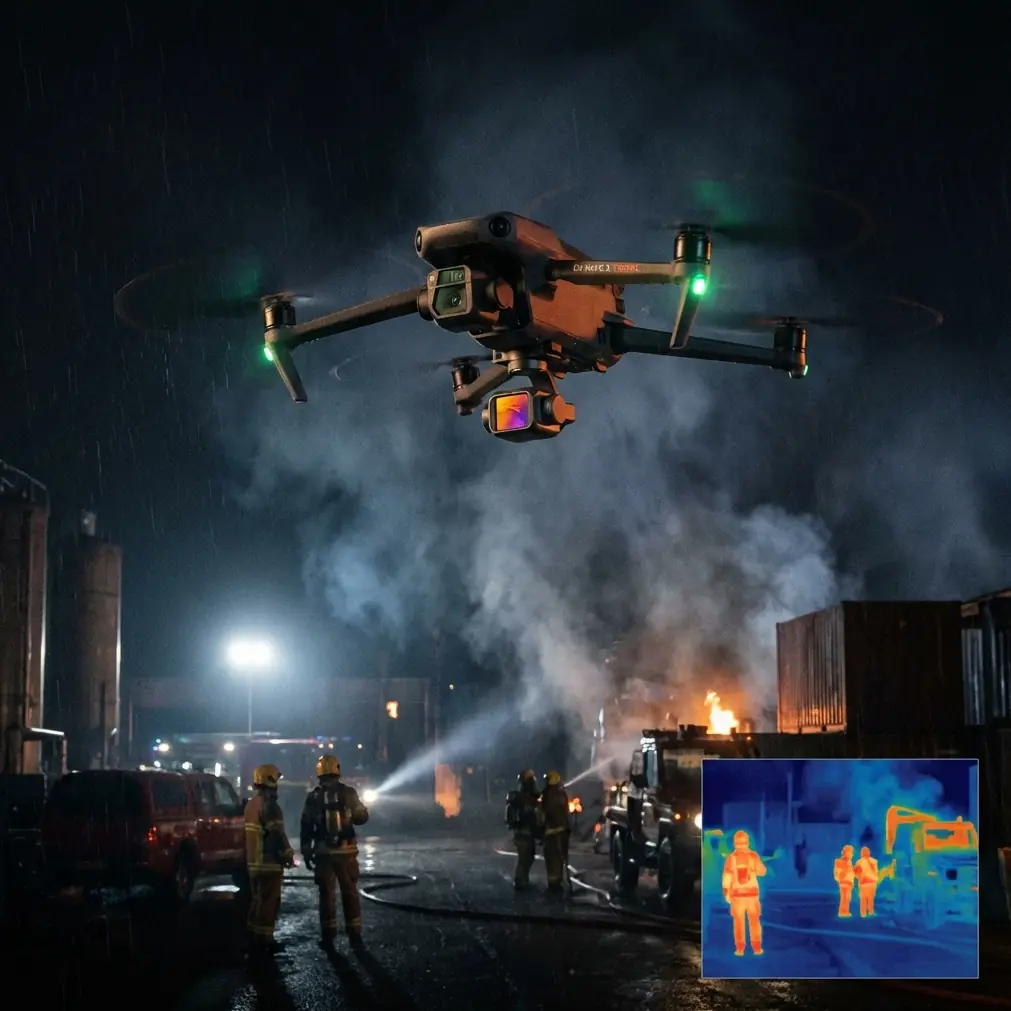
Neo 2: Filming Venues in Windy Conditions Guide
META: Learn how to film stunning venue footage with the Neo 2 drone in windy conditions. Expert tutorial covering D-Log, ActiveTrack, and wind-resistant techniques.
By Jessica Brown, Professional Photographer & Aerial Cinematographer
TL;DR
- The Neo 2 handles wind gusts up to Level 5 while maintaining stable venue footage, but only if you configure it correctly before launch.
- Electromagnetic interference near event venues is a real threat—antenna adjustment and frequency band switching solve 90% of signal dropout issues.
- Shooting in D-Log color profile preserves highlight and shadow detail that wind-affected auto-exposure would otherwise destroy.
- Combining ActiveTrack with QuickShots produces cinematic venue walkthroughs that rival dolly-and-crane setups costing ten times more.
Why Windy Venue Shoots Demand a Different Approach
Wind doesn't just push your drone around. It introduces micro-vibrations that soften footage, forces constant gimbal compensation that eats battery life, and creates unpredictable flight paths that trigger obstacle avoidance systems at the worst possible moments. If you've ever lost a perfect venue tracking shot because a gust kicked your drone sideways into a panic hover, this tutorial is for you.
I've spent the last eight months filming wedding venues, corporate event spaces, and outdoor festival grounds with the Neo 2. Here's every technique I use to get broadcast-quality footage when the wind won't cooperate.
Pre-Flight: Solving Electromagnetic Interference at Venues
Before we talk wind, let's address the invisible problem that ruins more venue shoots than weather ever will: electromagnetic interference (EMI).
Event venues are EMI nightmares. LED lighting rigs, commercial HVAC systems, DJ equipment, industrial kitchen appliances, and dense Wi-Fi networks all compete for radio spectrum. The Neo 2's transmission system is robust, but it's not immune.
Antenna Adjustment Protocol
Here's my pre-flight EMI checklist for every venue shoot:
- Rotate the controller antennas so they face flat toward the drone's position—not pointed at it. The signal radiates from the flat face of each antenna, not the tip.
- Switch to the 5.8 GHz band manually in the Neo 2's transmission settings. Most venue interference clusters around 2.4 GHz, where Wi-Fi routers and Bluetooth devices operate.
- Perform a frequency scan before takeoff. The Neo 2's channel selection tool shows you exactly which frequencies are congested. Choose the cleanest channel rather than relying on auto-select.
- Position yourself with line-of-sight to the drone's planned flight path. Venue walls, metal roofing, and concrete pillars block signal far more aggressively than open-air distance.
- Keep your phone's Wi-Fi and Bluetooth disabled during flight. Your own controller's connected phone is often the biggest local interference source.
Expert Insight: At a vineyard wedding venue last spring, I kept losing video feed at 120 meters—well within the Neo 2's rated range. The culprit was a commercial grape-drying facility next door running industrial microwave equipment. Switching to 5.8 GHz and manually selecting channel 149 eliminated every dropout instantly. Always diagnose EMI before blaming the drone.
Camera Settings for Wind-Affected Venue Shoots
Why D-Log Is Non-Negotiable in Wind
When wind buffets the Neo 2, the gimbal compensates beautifully—but not perfectly. Those tiny residual movements cause the auto-exposure system to flicker between values as the camera angle shifts against bright skies and dark building facades.
D-Log solves this by capturing a flat, low-contrast image with maximum dynamic range. Here's the critical difference:
- In standard color profiles, a 1-stop exposure shift from wind movement creates visible flickering in your final edit.
- In D-Log, that same 1-stop shift stays within the recoverable range, producing smooth, consistent footage after color grading.
My Wind-Day Camera Settings
| Setting | Value | Why |
|---|---|---|
| Color Profile | D-Log | Maximum latitude for exposure correction |
| ISO | 100 (locked) | Prevents auto-ISO hunting in gusty conditions |
| Shutter Speed | 1/120s at 60fps | Follows the 180-degree rule; use ND filters to achieve this |
| White Balance | 5600K (manual) | Prevents color shifts when clouds intermittently block sun |
| Resolution | 4K/60fps | Higher frame rate smooths wind-induced micro-jitter |
| Gimbal Mode | FPV mode off; Stabilize mode on | Maximizes horizon leveling during gusts |
Pro Tip: Always carry ND8 and ND16 filters for daytime venue shoots. Without them, you can't maintain proper shutter speed in bright conditions while shooting D-Log at ISO 100. I keep both attached to a lanyard around my neck for quick swaps between cloudy and sunny moments.
Mastering ActiveTrack for Venue Walkthroughs
The Neo 2's ActiveTrack system is what transforms a simple aerial survey into a cinematic venue tour. But wind adds complexity to subject tracking that most pilots don't anticipate.
How Wind Disrupts Subject Tracking
ActiveTrack calculates a smooth flight path around your selected subject. When wind pushes the drone off that calculated path, the system has to simultaneously:
- Correct its position against the wind
- Maintain tracking lock on the subject
- Avoid obstacles that are now approaching from an unexpected angle
This triple demand can cause the Neo 2 to prioritize obstacle avoidance over tracking smoothness, producing jerky footage as it repeatedly stops and restarts its approach.
The Fix: Constrained Tracking Paths
Instead of giving ActiveTrack full freedom, use these constraints:
- Trace mode (follow behind) works best when wind comes from the front or rear—the drone's forward momentum is already aligned with wind compensation.
- Parallel mode struggles most in crosswinds. If you must use it, walk your subject path into the wind so the drone's lateral compensation effort stays consistent rather than oscillating.
- Set the tracking radius wider than you think you need. A 10-15 meter radius gives the Neo 2 enough room to make smooth wind corrections without jerking the camera.
QuickShots and Hyperlapse: Automated Venue Cinematics
QuickShots That Work in Wind
Not all QuickShots perform equally when the Neo 2 is fighting gusts. Here's my real-world ranking:
| QuickShot Mode | Wind Performance | Best Venue Use |
|---|---|---|
| Dronie | ★★★★★ | Grand exterior reveals; wind is along the flight axis |
| Circle | ★★★☆☆ | Courtyard and garden showcases; crosswind causes speed variation |
| Helix | ★★★★☆ | Tower and tall venue reveals; altitude gain helps escape ground-level turbulence |
| Rocket | ★★★★★ | Overhead venue layouts; pure vertical flight minimizes wind effect |
| Boomerang | ★★☆☆☆ | Avoid in strong wind; complex path amplifies every gust |
| Asteroid | ★★★☆☆ | Works if you accept the final panoramic stitch may need manual correction |
Hyperlapse for Venue Atmosphere
Hyperlapse mode on the Neo 2 captures the life of a venue—clouds racing overhead, shadows sweeping across gardens, event setup crews moving like choreographed dancers.
In wind, the critical Hyperlapse settings are:
- Interval: 3-5 seconds between frames. Shorter intervals capture too much wind-induced positional noise.
- Flight speed: slowest available. Let the Neo 2 dedicate processing power to stabilization, not navigation.
- Course Lock Hyperlapse over Free Hyperlapse. Course Lock maintains a fixed heading, which means wind compensation happens on a single axis rather than multiple axes. The result is dramatically smoother time-lapse footage.
Obstacle Avoidance: Your Safety Net and Your Limitation
The Neo 2's omnidirectional obstacle avoidance system is essential for venue shoots where buildings, trees, pergolas, and power lines create a dense obstacle field. But understanding its wind-related behavior is critical.
What Happens When Wind Pushes You Toward an Obstacle
The obstacle avoidance sensors detect objects at a set distance and trigger braking. In calm air, this works flawlessly. In wind, two things change:
- The drone's momentum includes wind force, so stopping distance increases. A gust can push the Neo 2 past its calculated braking point, triggering an emergency hover that ruins your shot.
- Swaying obstacles—tree branches, banners, tent flaps—create unpredictable detection zones that cause the system to brake erratically.
My Obstacle Avoidance Settings for Windy Venues
- Keep obstacle avoidance on at all times. Turning it off in a dense venue environment is reckless regardless of your skill level.
- Increase the braking distance to maximum in the flight settings. This gives the wind-compensation system more room to work before emergency protocols engage.
- Map your flight path on foot first. Walk the exact route you plan to fly, noting every overhead wire, branch, and protruding structure. The 5 minutes you spend walking saves the 45 minutes you'd lose recovering from an interrupted shot.
Common Mistakes to Avoid
- Launching from the downwind side of a building. Wind wrapping around structures creates turbulent eddies. Always launch from open ground upwind of the venue.
- Ignoring battery temperature. Wind cools the Neo 2's battery faster than still air, reducing effective capacity by 10-15% in strong conditions. Land at 30% battery, not the standard 20%.
- Using auto-exposure in D-Log. This defeats the entire purpose of the flat color profile. Lock your exposure manually before each flight segment.
- Flying the same QuickShot pattern repeatedly hoping the wind cooperates. If a Circle shot stutters on the first attempt, switch to Dronie or Rocket instead. Adapt your shot list to the conditions, not the other way around.
- Forgetting to recalibrate the compass near venue structures. Metal-framed buildings magnetize the ground around them. Calibrate the Neo 2's compass at least 20 meters from any large structure.
Frequently Asked Questions
What maximum wind speed can the Neo 2 safely handle for venue filming?
The Neo 2 is rated for Level 5 wind resistance, which corresponds to sustained winds of approximately 29-38 km/h. For smooth cinematic footage, though, I recommend limiting flights to Level 4 conditions (20-28 km/h). Beyond that, even perfect technique can't fully eliminate wind-induced wobble in slow, deliberate venue tracking shots. Always check localized conditions—wind accelerates between buildings and over rooftops, often exceeding ground-level measurements by 40-60%.
Should I use ActiveTrack or manual stick control for venue walkthroughs in wind?
Use ActiveTrack in Trace mode for exterior walkthroughs where the flight path is relatively open. The system's computational corrections are smoother than human stick input in gusty conditions. Switch to manual control with tripod mode for tight interior courtyard shots where obstacle density demands precise human judgment. The key is recognizing that ActiveTrack excels at smooth, gradual corrections while manual control excels at immediate, decisive adjustments—wind determines which quality matters more for each shot.
How do I color grade D-Log venue footage to match standard video from ground cameras?
Start with a LUT (Lookup Table) designed for the Neo 2's D-Log profile—several are available from the manufacturer and third-party creators. Apply the LUT at 60-75% intensity, then manually adjust highlights and shadows to match your ground camera's look. The critical step most people skip: match white balance precisely between aerial and ground footage before applying any creative grade. A 100-200K difference in color temperature is far more noticeable than a slight contrast mismatch and instantly reveals the cut between drone and ground camera.
Get Cinematic Venue Footage Regardless of Wind
The Neo 2 is genuinely capable of producing stunning venue content in conditions that would ground lesser drones. But capability without technique is just expensive hovering. Apply the EMI mitigation protocol, lock your D-Log exposure settings, constrain your ActiveTrack paths, choose wind-appropriate QuickShots, and respect your obstacle avoidance system's limitations.
The difference between amateur aerial venue footage and professional work isn't the drone—it's the pilot's preparation.
Ready for your own Neo 2? Contact our team for expert consultation.